A Simple Way to Make Your PDF Interactive Online in 2026 - No Download Needed
Making a PDF interactive used to mean extra software and a learning curve. Here's a quick look at what it actually involves, where accessibility tends to fall short along the way, and a simpler, browser-based way to do it online, no download required.
Written By: Jagadish C U (Founder Of Zentrovia Solutions)
Most businesses still share information as a plain PDF: a product catalog, a sales deck, an annual report, a proposal. It works, but it rarely invites a reader to do anything beyond scroll and close the tab. Making that PDF interactive, with clickable links, embedded video, maybe a lead form, can change that, and it no longer requires specialized design software to pull off. This is a quick overview of what an interactive PDF involves, where accessibility tends to fall short along the way, and a simpler, browser-based way to get there online, without downloading anything.
What Is an Interactive PDF?
An interactive PDF generally refers to a document built with added functionality beyond plain text and images: things like clickable navigation, embedded hyperlinks, form fields, buttons, or bookmarks that jump a reader to a specific section. Traditionally, these elements were added manually in specialized design or publishing software before the file was exported, which worked well enough for a single document but became harder to maintain at scale, when a team needed to update a file often, share it across departments, or make sure it opened correctly on every device a recipient might be using.
Why Businesses Should Look for PDF Interactivity in the First Place
The appeal is fairly straightforward. A sales brochure a reader can click through to a relevant section can feel more current than a catalog with dozens of pages. A proposal with an embedded video walkthrough can say more than a page of text. A report with a clickable table of contents can help a reader move around without endless scrolling.
For B2B teams in particular, the goal behind making a PDF interactive is usually one of a few things: making content easier to navigate, making it more engaging in an email or on a call, or giving a reader a reason to interact rather than skim and forget.
Watch: Bring Your Flipbooks to Life with Interactive Multimedia
Where Accessibility Tends to Fall Short Along the Way
The part that often gets skipped, whether a PDF stays static or gets made interactive, is accessibility. A screen reader user can get an inconsistent experience depending on how the file was exported, keyboard navigation is often limited to basic scrolling, and there is rarely a built-in way to have the text read aloud or adjusted for a reader with dyslexia. Audio or video added for context, a short product walkthrough, for example, typically has no caption track or transcript attached either, which can leave it unusable for a reader who is hard of hearing, or who simply prefers reading over watching a clip.
Accessibility is usually treated as a separate pass at the end of a project, so it tends to get dropped when time is tight, which is exactly when it matters most.
Read: Your Complete Guide to Accessible Digital Publications in 2026
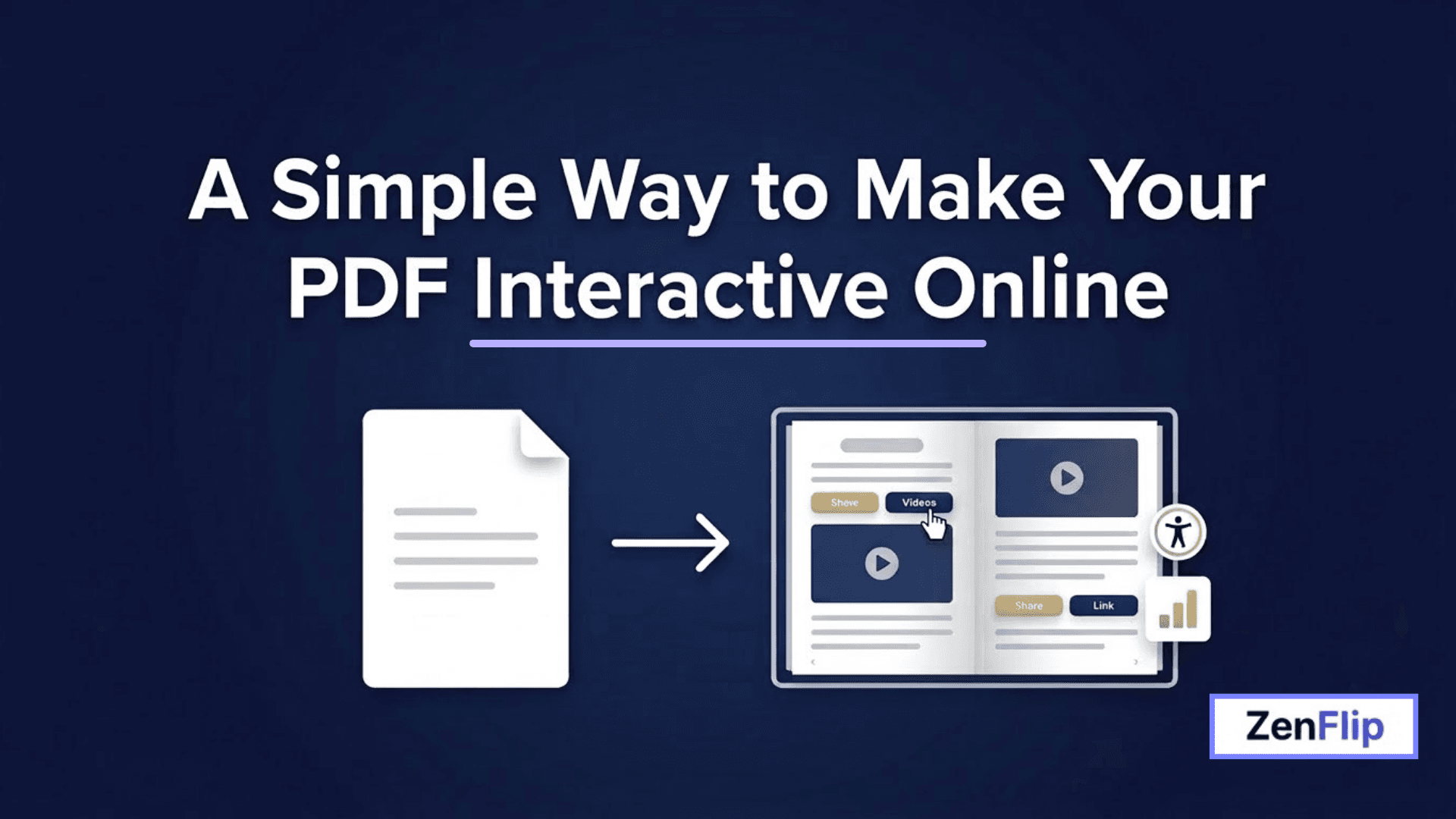
A Simpler Way to Make a PDF Interactive Online
This is where an online, browser-based approach can help. Instead of adding interactive elements to a PDF file directly, the PDF can be converted into a different format altogether, one built to live on the web and behave consistently wherever it's opened. ZenFlip works this way: a PDF, Word (.docx), or PowerPoint (.pptx) file can be uploaded and converted into an interactive document directly in the browser, without needing specialized design software or a design background. Uploads can run up to 2,000 pages and up to 1 GB per file, which generally covers anything from a short brochure to a full annual report.
Visit: zenflip.io - To start publishing your interactive flipbook.
What Actually Happens When You Convert a PDF Online
The process is broken into a few short steps rather than one long export. A PDF, Word, or PowerPoint file is uploaded first, which typically takes under a minute. From there, branding can be added (logo, colors, and on some plans a custom domain), access can be set to public, private, or password-protected, and a lead form can optionally be attached, usually a couple of minutes of adjustment. Publishing itself is close to instant: the file is processed, a page-turning reading motion is applied, an accessibility layer is generated automatically, and a live shareable link is produced. ZenFlip's own published figures put the average time from upload to a live, interactive document at around five minutes.
Read: ZenFlip | How It Works
What Changes Once a PDF Becomes Interactive
Clickable hotspots can be placed on a page to open a link, jump to another section, or trigger a download, and video can be embedded directly on a page instead of linked out to an external site, so a reader never has to leave the document to watch a product demo. The document can be shared as a direct link on any plan, or embedded into a website with a short line of code on plans that include it, automatically resizing to fit wherever it's placed.
This matters most for the kind of documents B2B teams already produce: product catalogs, sales brochures, annual reports, proposals, and onboarding guides. A product catalog built this way can carry a demo video on the relevant page, and none of it requires the reader to download anything first.
ZenFlip's full interactive PDF guide walks through every step in more detail, including hotspot types, branding options, and publishing settings.
Lead Capture, on the Plans That Include It
A lead capture form or gated access, where a reader has to submit an email before reading, can also be added on plans that support it, with form submissions able to sync to a CRM on higher tiers. This isn't part of every plan, so it's worth checking current plan details before counting on it for a specific campaign.
Built-In Accessibility, Without an Extra Pass
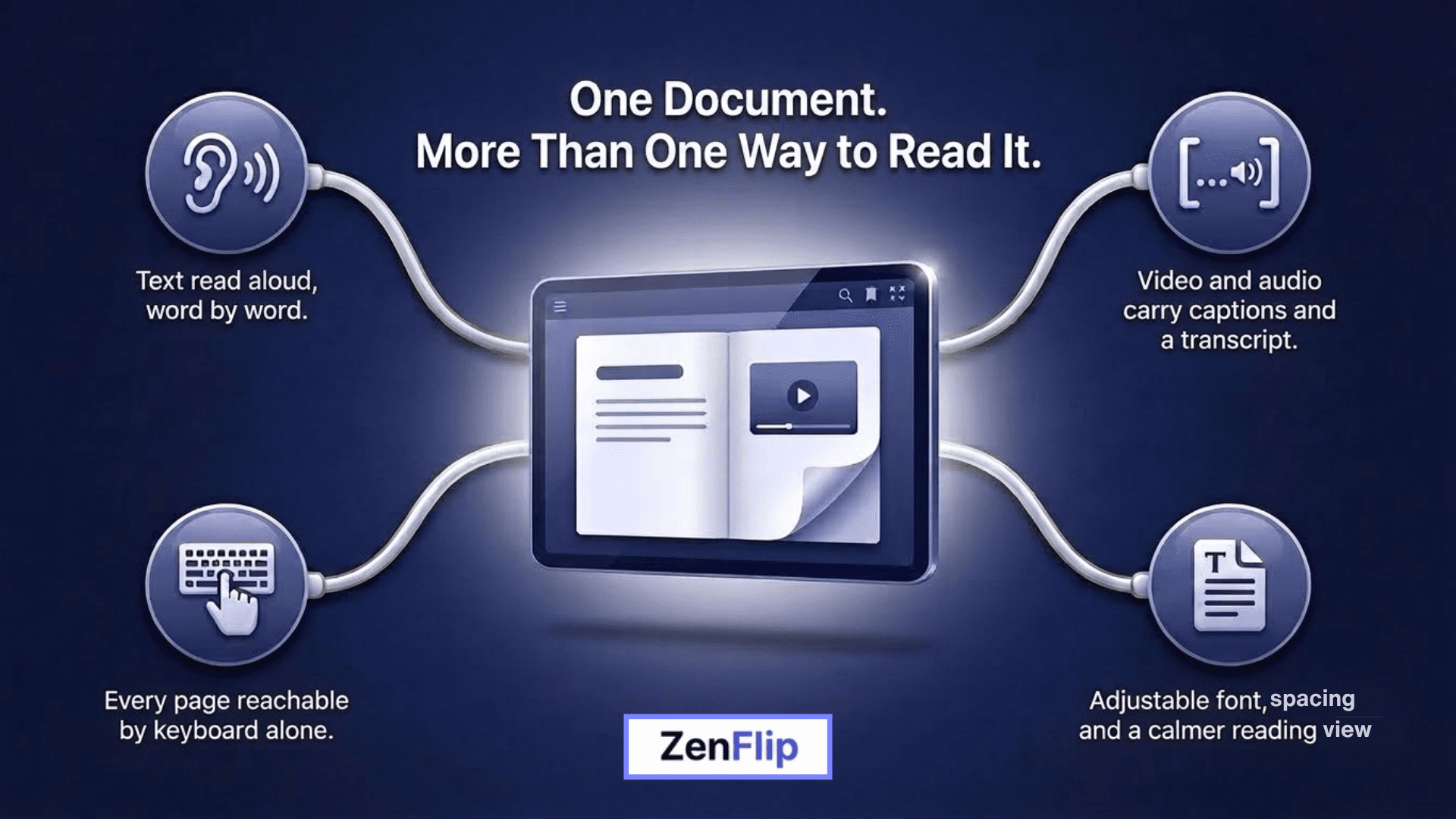
On ZenFlip, every converted document automatically gets text extraction, paragraph detection, and word-level text mapping, the groundwork that enables screen reader support and text-to-speech with word-by-word highlighting. Keyboard navigation includes a documented set of shortcuts, and the interface is built with ARIA live regions and visible focus indicators so keyboard and screen reader users can follow page changes. A reduced-motion setting is also detected automatically, which turns off the page-turning animation for readers whose system is set to minimize motion.
The same thinking carries over to audio and video. Audio and video hotspots placed inside a page come with captions and a text transcript alongside them, so a walkthrough or explainer clip doesn't become an accessibility dead end the way it often does on a plain shared PDF. Publishers can also turn on an ImmersiveReader view with an OpenDyslexic font option and adjustable spacing, and can optionally enable AI-generated descriptions for charts and photographs to support text-to-speech on image-heavy pages. ZenFlip's own accessibility statement is explicit that outcomes still depend partly on the source file, meaning a PDF with a sensible heading structure and reasonable contrast will convert into a more accessible document than one that was poorly structured to begin with.
Seeing What Happens After You Share It
One of the clearer differences between a static PDF and an interactive one is what happens after it's sent. Every plan includes page-level view tracking, and plans above the free tier add time-on-page, heatmaps, geographic data, device breakdown, campaign tracking, and a count of how many times a reader activated text-to-speech. For a sales team, this kind of visibility can help prioritize a follow-up conversation around the part of a proposal a prospect spent the most time on, rather than guessing.
On the privacy side, this tracking is built without cookies or device fingerprinting. An anonymous reader is assigned a temporary viewer ID held only in memory for that visit and discarded once the tab closes, alongside general location and device type, so a static PDF sent over email still offers no comparable visibility once it leaves the outbox.
Read: How to Use Page-Level Analytics to Improve Your Digital Publication in 2026
Getting Started
Making a PDF interactive doesn't have to mean learning new design software or budgeting for one. ZenFlip's free Explorer plan includes five permanent publications with no watermark and no credit card required, which is generally enough to try converting an existing PDF, Word document, or PowerPoint file and see how it reads on both desktop and mobile.
For the complete walkthrough with every step covered, see ZenFlip's full interactive PDF guide, and for teams comparing tools before committing, the flipbook maker comparison is a reasonable place to start.
Frequently Asked Questions
What is an interactive PDF?
An interactive PDF is generally a document built with added functionality such as clickable links, buttons, form fields, or bookmarks, that a reader can interact with beyond just scrolling through text and images.
Do I need design software to make a PDF interactive?
Not necessarily. An online, browser-based tool can convert a PDF into an interactive document without needing specialized design software or a design background.
How long does it take to convert a PDF into an interactive document?
Based on ZenFlip's own published figures, the average time from uploading a file to having a live, interactive document is around five minutes, including uploading, adding branding, and publishing.
Is an interactive PDF made this way accessible?
Every document converted on ZenFlip automatically receives text extraction, keyboard navigation, and screen reader support, plus optional tools like audio and video hotspots including captions and a transcript, ImmersiveReader and AI-vision for image descriptions.
Can I track how people engage with it after sharing it?
Yes. Page-level view tracking is included on every plan, with heatmaps, time-on-page, and additional engagement data available on plans above the free tier.
Is lead capture available on every plan?
No. Lead capture forms and gated content are available on plans above ZenFlip's free Explorer plan, so it's worth checking current plan details if a campaign depends on it.
Is there a free way to try this?
Yes. ZenFlip's free Explorer plan includes five ppublications, no watermark, and no credit card required.
#InteractivePDF #PDFToFlipbook #FlipbookMaker #DigitalPublishing #B2BMarketing #AccessiblePDF #WCAGCompliance #PDFAnalytics #SalesEnablement
Turn your next PDF into a flipbook — free
No credit card, no watermarks, no time limits. 5 publications on the free plan — ready in under 2 minutes.