Immersive Reader Explained: How It Makes Digital Content Easier for Everyone
Immersive Reader in ZenFlip is a distraction-free reading mode that may help businesses make reports, manuals and internal documents easier to read
Written By: Jagadish C U (Founder Of Zentrovia Solutions)
Long documents are part of daily business. Annual reports, training manuals and process guides often run for many pages, and the people who need to read them do not all read the same way. Immersive Reader, a feature in ZenFlip, offers one possible answer. It gives readers a quieter, more adjustable way to take in written content, and it may help organizations present important documents in a form that more of their audience can use comfortably.
This article explains what Immersive Reader is, which controls ZenFlip lists for it, and where it may fit into business publishing.
What Immersive Reader Is in ZenFlip
Immersive Reader is a distraction-free reading mode. ZenFlip's changelog describes it as a mode that strips the flipbook chrome and presents publication content as a clean, linear text flow. In plain terms, the page-turn interface steps aside so the text can take center stage.
A Quieter Way to Read Long-Form Content
A flipbook interface is built for browsing, flipping and exploring. That can be a strength for brochures and magazines. For a long report or a detailed manual, some readers may prefer to simply read. ZenFlip describes Immersive Reader as suited to anyone who wants to read long-form content without the visual noise of a page-turn interface, so it may work best as an option that readers can choose alongside the flipbook view.
The Reading Controls Behind Immersive Reader
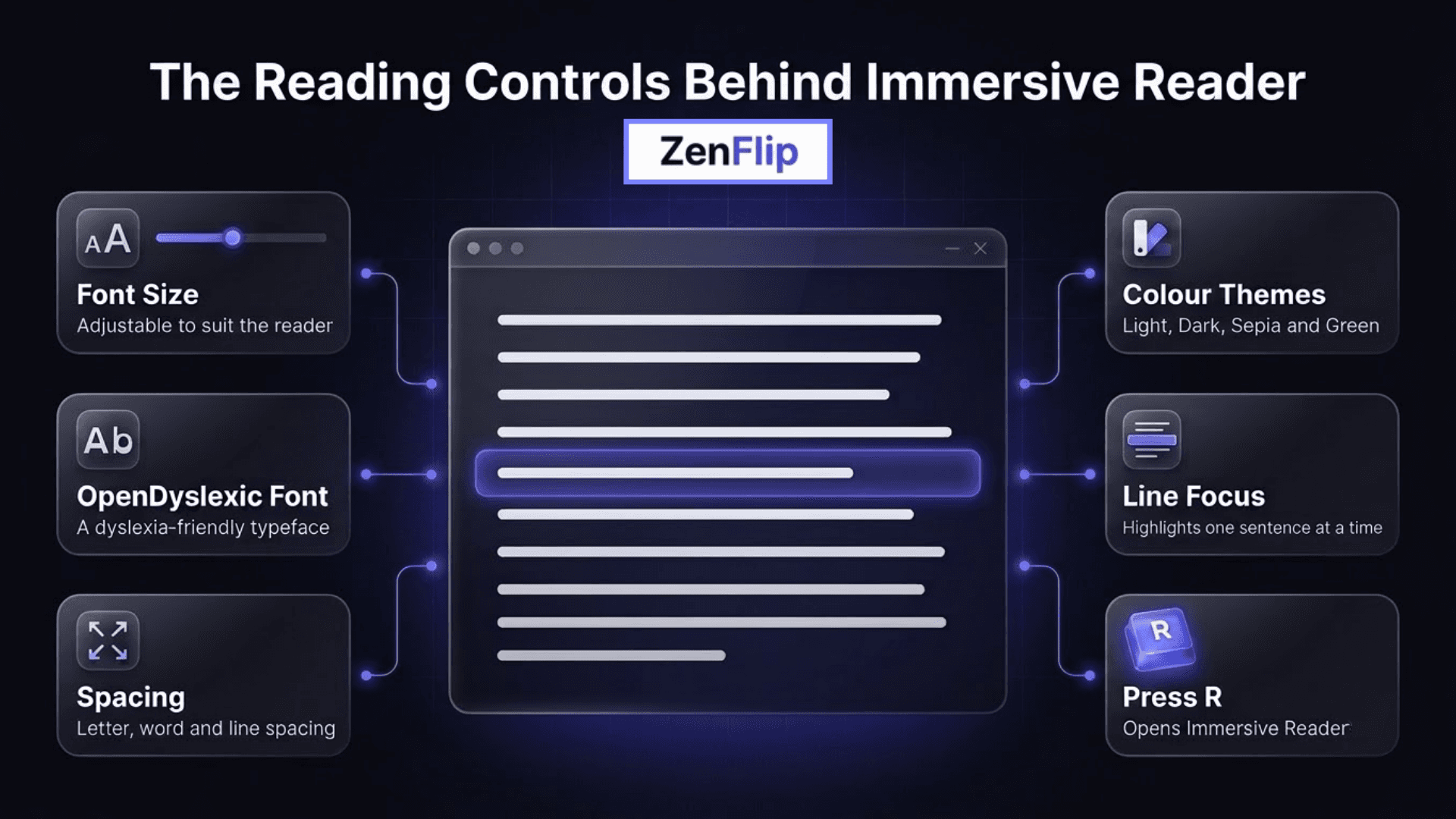
ZenFlip's accessibility features page describes Immersive Reader as a full-screen reading environment. It lists several controls that readers can use to shape the page to their own needs.
Font and Spacing Options
The features page mentions the OpenDyslexic font along with adjustable letter, word and line spacing. The changelog adds adjustable font size to the list. Together, these reader controls may let a reader loosen dense text or enlarge it until it feels comfortable. Because every reader's preferences differ, offering several controls may be more useful than offering one fixed setting.
Four Colour Themes
ZenFlip lists four colour themes: Light, Dark, Sepia and Green. The changelog also refers to adjustable background colour. A reader who finds a bright white page tiring might choose a different theme, while another reader may stay with Light. The point is that the choice sits with the reader.
Line Focus Mode
The features page also describes a line focus mode that highlights one sentence at a time. For readers who lose their place in a long paragraph, a single highlighted sentence may help keep attention on the line they are reading.
Opening It From the Keyboard
ZenFlip's features page lists keyboard shortcuts for the viewer. Pressing R opens ImmersiveReader, and the page notes that pressing the question mark shows all shortcuts. That means a reader may reach the mode without searching through menus, which could be helpful for people who prefer to work from the keyboard. The same page states that every viewer function is keyboard-accessible, and lists other shortcuts such as F for fullscreen and S for the sidebar.
A Different, More Accessible Way to Read
Immersive Reader is not a special tool for one kind of document. ZenFlip describes it as a reading mode, which suggests it is simply another way for a reader to take in the same publication. The reader chooses it and adjusts it to suit their own needs.
One Publication, Different Reading Preferences
Readers bring different needs to the same publication. ZenFlip says Immersive Reader is designed for readers with dyslexia, low vision or cognitive differences, and for anyone who simply wants to read without visual noise. For a business, that may mean the same published content can reach people who prefer different ways of reading, without anyone needing a separate copy.
Accessibility as Part of Communication
Immersive Reader arrived as part of an update focused on accessibility and reader experience, and it sits among the tools that give publishers control over how content is presented.
Immersive Reader and the Wider Reading Experience
Immersive Reader is one of several reading tools in ZenFlip. Looking at how they relate may help a business decide how to use them together.
Alongside Text-to-Speech
ZenFlip also offers a paragraph-aware text-to-speech tool with adjustable speed and word-level highlighting. Pressing T toggles it. A reader who likes to see the text while listening may find that reading mode and narration complement each other, since one adjusts how the text looks and the other adds an audio option.
Alongside Text View
ZenFlip also offers a Text View that shows the whole publication as one accessible web page, with headings, paragraphs, lists and image descriptions in reading order. Text reflows when readers zoom. Text View and Immersive Reader are separate features, so a business may wish to review both to see which suits its audience.
Other Comfort Features Around It
ZenFlip also provides more than fifteen built-in keyboard shortcuts, skip links and visible focus indicators on every element. None of these replaces Immersive Reader, but together they suggest a viewer that offers several ways to adjust the reading experience. Businesses may wish to explore them to see which combination suits their readers.
A Reader-Controlled Experience
Readers can adjust Immersive Reader settings without touching any publication settings. For a business, this may mean the published layout stays as the team designed it for everyone else, while individual readers tailor their own view. Readers who prefer the standard flipbook view can simply keep using it.
How Businesses May Approach Immersive Reader
Because the feature is part of the ZenFlip viewer, a team could consider it when planning how its content will be read. Immersive Reader is a reading option, not a document type or a business tool, so a team may find it simplest to think of it as one more way its audience can read.
ZenFlip is available on both a free option and paid options, and what is included can differ between them. Teams may wish to review ZenFlip's pricing to see which option fits their needs before publishing.
Finally, it may help to open a published document, press R, and try the controls first-hand. Seeing the font, spacing and colour options as a reader would see them may be the quickest way to judge whether Immersive Reader suits a particular audience, before deciding how widely to promote it.
Conclusion
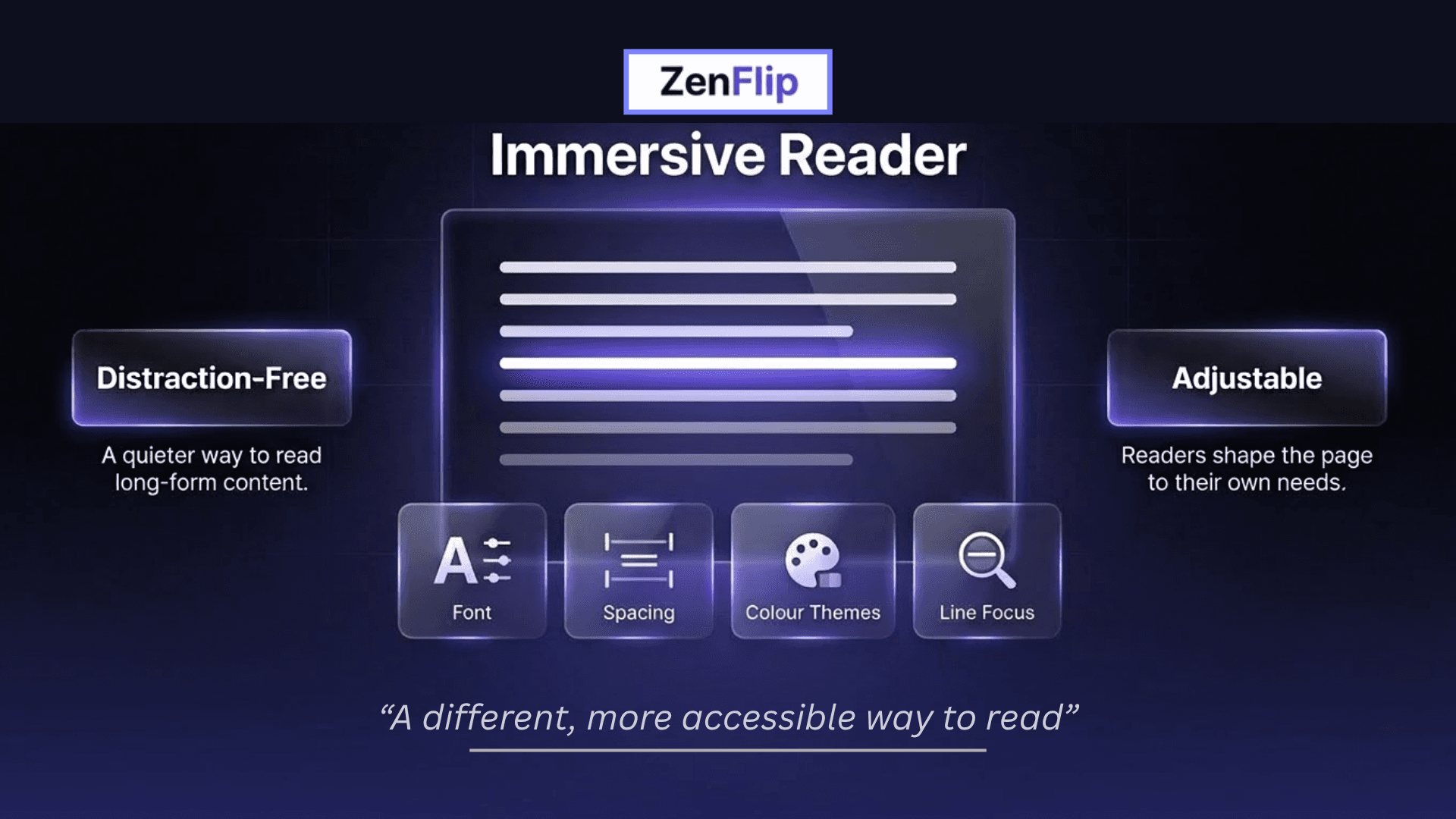
ZenFlip describes itself as a platform for publishers, marketers and creators who care about quality and accessibility, and Immersive Reader is one example of that focus. Immersive Reader gives ZenFlip readers a distraction-free and adjustable way to read long-form content, with controls for font, spacing, colour themes and line focus. For businesses, it may offer one more way to make published content feel approachable to a wider range of readers. As always, the best test is a real document and a real audience of readers today, so teams may wish to try it on their own content and see how it reads.
Frequently Asked Questions
What is Immersive Reader in ZenFlip?
It is a distraction-free reading mode. It strips the flipbook chrome and presents publication content as a clean, linear text flow.
Which controls does Immersive Reader include?
The controls include the OpenDyslexic font, adjustable letter, word and line spacing, four colour themes (Light, Dark, Sepia and Green) and a line focus mode that highlights one sentence at a time. Font size and background colour are adjustable too.
How can a reader open it?
The R key is the shortcut that opens ImmersiveReader, and the question mark key shows all shortcuts.
Who is Immersive Reader designed for?
It is designed for readers with dyslexia, low vision or cognitive differences, and for anyone who wants to read long-form content without the visual noise of a page-turn interface.
Does it change my publication settings?
No. Readers can adjust font size, line spacing and background colour without touching any publication settings.
Does it work with text-to-speech?
They are separate reading tools. Pressing T toggles text-to-speech, and pressing R opens ImmersiveReader.
Do publishers still need to prepare their documents?
ZenFlip notes that accessibility outcomes depend on implementation and source content, and that teams should make sure source PDFs use proper heading structure, alt text and sufficient contrast.
Is there a free option?
ZenFlip is available on both a free option and paid options, and what is included can differ between them.
#ImmersiveReader #ZenFlip #DigitalPublishing #B2BContent #FlipbookSoftware #DistractionFreeReading #ReaderExperience #BusinessDocuments #DigitalDocuments #ContentStrategy
Turn your next PDF into a flipbook — free
No credit card, no watermarks, no time limits. 5 publications on the free plan — ready in under 2 minutes.